Add a custom unit to a Field Gauge and Process Meter

Add a custom unit to a Field Gauge and Process Meter

Add a custom unit to a Field Gauge and Process Meter
1


Power on the gauge and connect it to the computer running FieldLab Desktop with the provided USB cord.

2
On the Devices screen in FieldLab Desktop, select the Field Gauge or Process Meter you wish to add custom units to.

3
Select the Settings tab.

4
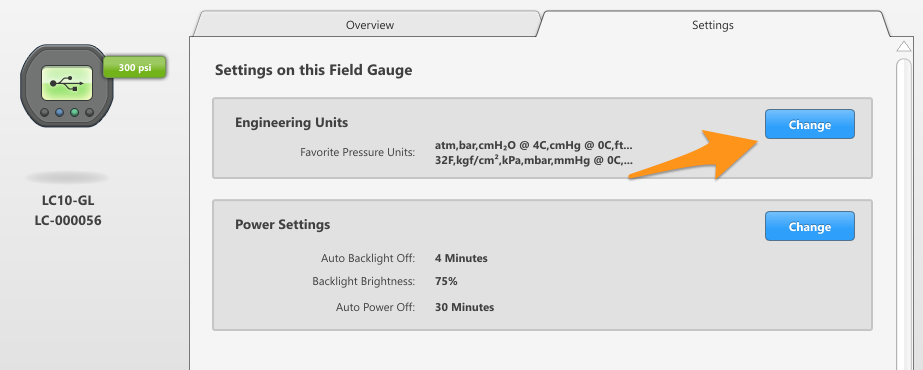
In the Engineering Units module, select the Change button.
5
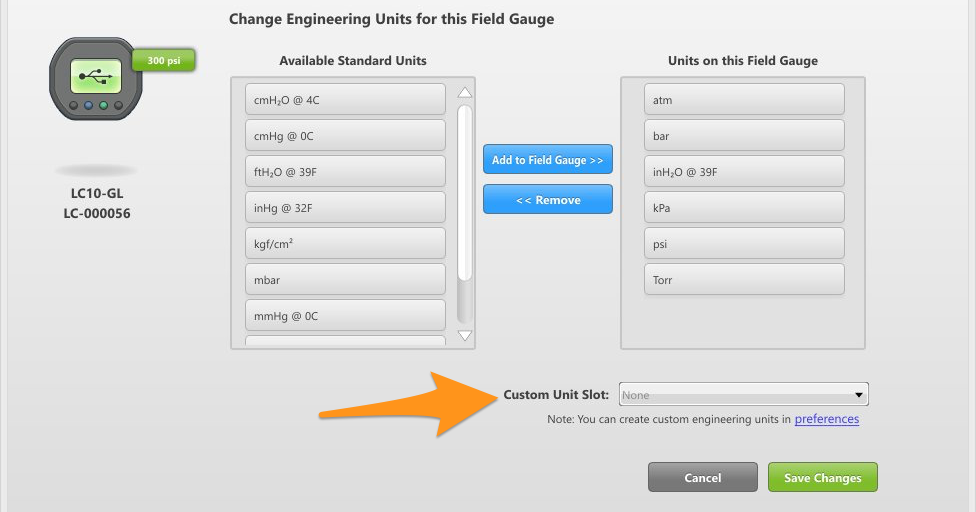
Select the custom unit you wish to add from the Custom Units Slot menu.
6
Select the Save Changes button.


Once you save changes, the custom unit will be active on your connected gauge.

    • Related Articles

    • Create a Custom Pressure Unit with a User-Defined Curve Fit

      Things you will need: The FieldLab Desktop app on your Windows computer. Version 1.40.4 or later. Update FieldLab Desktop to the Latest Version. A Ralston FieldLab Digital Pressure Calibrator, Field Gauge, or Process Meter In the FieldLab Desktop ...
    • Create Custom Pressure Units

      Learn how to create custom pressure units on the FieldLab Desktop software and add them to your Ralston devices. 1. From the "FieldLab Desktop" menu, select "Preferences" 2. Select "Custom Units" 3. In the Custom Units dialog box, choose "New" for a ...
    • Add a Custom Unit to a Test

      1. Update or download & install the latest version of the FieldLab Desktop app on your Windows computer to Version 1.40.4 or later. Update FieldLab Desktop to the Latest Version. 2. Navigate to Tests Modes in FieldLab Desktop 3. Select an existing ...
    • Log pressure and/or temperature data to your computer with FieldLab Desktop

      This article applies to the following products: Field Gauge LC10, all models Field Gauge LC20, all models Process Meter LC30, all models FieldLab Digital Pressure Calibrator, all models. Things you will need: A PC running Windows. FieldLab Desktop ...
    • Calibrate the temperature sensor on a Field Gauge

      Do-it-yourself instructions for calibrating a Field Gauge with free FieldLab Desktop software. At the end of this process, FieldLab Desktop will compare the readings from your Reference device and Field Gauge (Zero, Mid Point, and Full Span), and if ...
    • Recent Articles

    • FieldLab Desktop doesn't recognize FieldLab when connected with a USB cable

      The FieldLab contains built-in safety circuitry that reduces the USB signal to intrinsically safe levels. Some newer PCs have USB port circuitry that further weakens the USB signal to a level below the required threshold for communication between the ...
    • Find the serial number and model for your gauge

      Located on the external casing of your Field Gauge All Field Gauge LC20 and Process Meter LC30 gauges are shipped with a custom sticker that contains the following information. Model Number. Model numbers ending in B1 or W1 indicate the gauge has a ...
    • Troubleshoot USB Power Noise Causing Pressure Reading Drift on a Ralston Gauge

      Problem Unexpected pressure reading changes on an Ralston LC gauge when connected via USB. Root Cause Electrical noise is introduced through a low-quality USB hub and power supply interference. Noise from switch-mode power supplies (SMPS) can travel ...
    • Adjust Damping on your Ralston Gauge

      Damping slows the visual updates of a pressure gauge’s reading. The goal is to minimize minor fluctuations of the pressure reading on the screen caused by subtle variations in pressure that may create unwanted visual noise. Ralston gauges are set to ...
    • Register your Ralston Gauge

      Register your Ralston gauge to access calibration certificates and install firmware updates. This article applies to: FieldLab, Field Gauge LC10, LC20, and Process Meter LC30, all models. Things you will need: A PC running Windows. FieldLab Desktop ...