Look Up Lead Time and Pricing for a Ralston Product
Sign in to your Ralston account
Select "Look Up Pricing and Lead Time by Model Number"

Enter the model number of the Ralston product
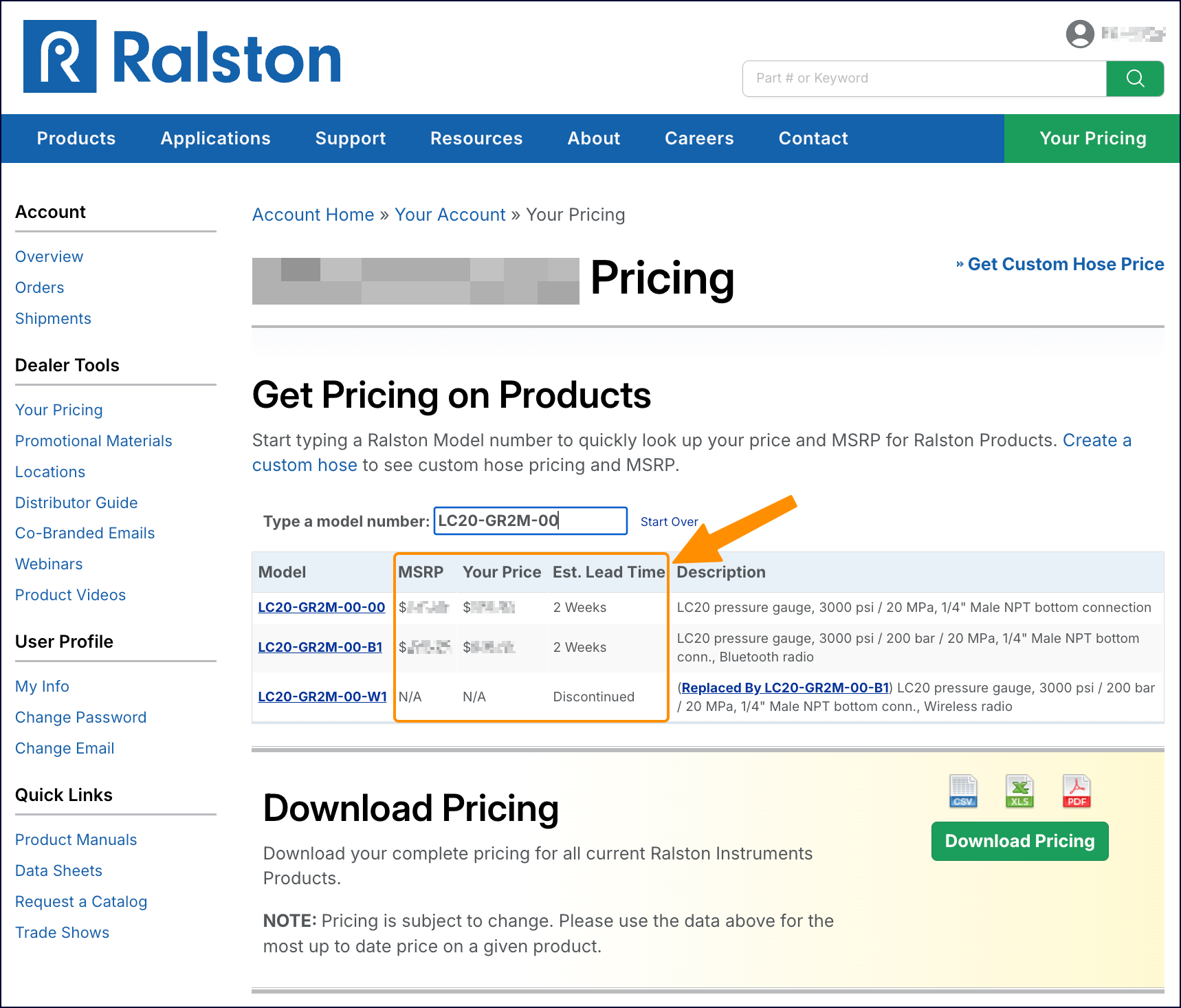
View the search results
For each model number in your search results, info will be provided for:
- MSRP
- Your price
- Estimated lead time
- A description of the product
Related Articles
Download Current Price List
Get current pricing for all Ralston products Price lists are available in PDF, XLS, and CSV formats. All file formats include the following fields: Product Family (e.g. "NPT Male Quick-test Adapters) Part Number (e.g. "QTHA-2MS1") Description MSRP ...
Make an ACH Payment on your Ralston Account
Go to ralstoninst.com Sign in to your Ralston account Select the Make Payment button Select invoices to pay 1. Select one or more invoices. 2. Select the Continue button. Select Payment Method 1. Select an existing payment method OR 2. Add a new ...
View Invoices
Go to ralstoninst.com Sign in to your Ralston account Select "Invoices" from the navigation list on the left side of the page View Invoices Search or Sort Invoices Make a Payment Learn how to make a credit card or ACH payment
Recent Articles
Max logging durations based on interval: Quick reference table
Applies to: All Bluetooth-enabled models of Field Gauge LC20, Process Meter LC30 Ralston Field Gauge and Process Meter gauges log data to on-board memory when you start logging from the Fieldlab Mobile app. The logging interval you select determines ...
Add Readings to a Test
Applies to FieldLab Mobile versions 2.0 and later. This walkthrough demonstrates how to add one pressure reading. You can add as many readings to a test as needed by repeating the steps below. 1. Connect the included Bluetooth antenna(s) to the ...
Delete a Reading from the Test screen
Applies to FieldLab Mobile versions 2.0 and later 1. Tap the Reading Card 2. Tap Reading 3. Tap Delete Reading 3a. Confirm that you wish to delete.
Getting Started: Run Your First Test with FieldLab Mobile
This guide walks you through connecting a gauge, logging data, and retrieving a completed test run. This walkthrough uses a single gauge, but FieldLab Mobile supports multiple gauges and readings in a single test. The following guide applies to ...
Update custom unit edits on your Field Gauge and Process Meter
Applies to FieldLab Desktop app versions 2.0 and later Learn how to: Create a custom pressure unit in FieldLab Desktop When you edit and save an existing custom unit, it will need to be manually updated on any Field Gauge or Process Meter that had ...